How to Create a Shopify Store: A Complete Step-by-Step Guide
How to Create a Shopify Store: A Complete Step-by-Step Guide
Learning how to create a Shopify store is one of the most valuable skills for anyone looking to sell products online. Shopify powers over 4 million online stores worldwide, making it the go-to platform for entrepreneurs, small businesses, and enterprise brands alike. In this comprehensive guide, we'll walk you through every step of creating your Shopify store, from initial signup to publishing your live storefront.
Why Choose Shopify for Your Online Store?
Before diving into how to create a Shopify store, it's worth understanding why Shopify has become the leading ecommerce platform:
- Ease of use: No coding knowledge required to get started
- Reliability: 99.99% uptime with enterprise-grade hosting included
- Scalability: Grows with your business from first sale to millions in revenue
- App ecosystem: Over 8,000 apps to extend functionality
- Payment processing: Built-in Shopify Payments or 100+ third-party gateways
- 24/7 support: Help available whenever you need it
Step 1: Sign Up for Shopify
The first step in creating a Shopify store is signing up for an account.
Create Your Account
- Visit shopify.com and click "Start free trial"
- Enter your email address
- Create a secure password
- Choose your store name (this becomes your default URL: yourstore.myshopify.com)
Tip: Don't worry too much about your store name at this stage. You can add a custom domain later, and the myshopify.com URL is only temporary.
Complete Initial Setup Questions
Shopify will ask a few questions to personalise your experience:
- Are you already selling?
- What's your current revenue?
- What industry are you in?
Answer honestly — these responses help Shopify tailor recommendations but don't limit your store's capabilities.
Step 2: Configure Your Store Settings
Once inside your Shopify admin, start by configuring essential settings before adding products.
General Settings
Navigate to Settings > General and complete:
- Store name: Your business name as it appears to customers
- Store contact email: Where you'll receive order notifications
- Store industry: Helps with analytics benchmarking
- Store address: Used for shipping calculations and tax purposes
Payments Setup
Setting up payments is crucial when learning how to create a Shopify store. Go to Settings > Payments:
Shopify Payments (recommended):
- No additional transaction fees
- Major credit cards accepted automatically
- Apple Pay, Google Pay, and Shop Pay included
- Easy setup with identity verification
Third-party providers:
- PayPal, Stripe, and 100+ alternatives
- Additional transaction fees apply (0.5% - 2%)
- Useful for specific regional payment methods
Shipping Configuration
Navigate to Settings > Shipping and delivery:
- Set your shipping origin: Where orders ship from
- Create shipping zones: Define where you'll ship (domestic, international)
- Set shipping rates: Choose from flat rate, weight-based, or calculated rates
- Free shipping thresholds: Encourage larger orders with free shipping over a certain amount
Tax Settings
Go to Settings > Taxes and duties:
- Shopify automatically calculates taxes for most regions
- Enable tax collection for regions where you have tax obligations
- Configure tax-inclusive or tax-exclusive pricing
- Set up duty and import tax collection for international orders
Step 3: Choose and Customise Your Theme
Your theme determines how customers experience your store. This is where your brand comes to life.
Selecting a Theme
From your admin, go to Online Store > Themes:
Free themes:
- Dawn (default, highly customisable)
- Craft, Crave, Sense, and others
- Great for starting out with no investment
Premium themes ($150-$400):
- More features and customisation options
- Industry-specific designs
- Often include advanced functionality built-in
Customising Your Theme
Click Customise on your active theme to open the theme editor:
Header:
- Upload your logo
- Configure navigation menus
- Set up announcement bars
Homepage sections:
- Hero banners with calls-to-action
- Featured collections
- Testimonials and trust badges
- Newsletter signup forms
Colours and typography:
- Set your brand colours for buttons, text, and backgrounds
- Choose fonts that reflect your brand personality
- Ensure sufficient contrast for accessibility
Footer:
- Add important links (About, Contact, Policies)
- Social media icons
- Payment method badges
- Newsletter signup
Step 4: Add Your Products
Products are the heart of your store. Here's how to add them effectively.
Creating Your First Product
Go to Products > Add product:
Title: Clear, descriptive product name including relevant keywords
Description:
- Lead with benefits, not just features
- Use bullet points for scanability
- Include sizing, materials, and care instructions
- Optimise for SEO with natural keyword usage
Media:
- High-quality images (minimum 2048 x 2048 pixels)
- Multiple angles and lifestyle shots
- Consistent backgrounds across products
- Consider adding video for complex products
Pricing:
- Set your selling price
- Add compare-at price for sale items
- Configure cost per item for profit tracking
Inventory:
- Enter SKU codes for tracking
- Set stock quantities
- Enable "Continue selling when out of stock" if applicable
Shipping:
- Enter accurate weight for shipping calculations
- Add package dimensions if using calculated rates
Variants:
- Create options like size, colour, or material
- Each variant can have unique pricing, images, and inventory
Organising Products with Collections
Collections help customers browse your catalogue. Go to Products > Collections:
Manual collections: Hand-pick products for curated groups
Automated collections: Products added automatically based on conditions:
- Product tags
- Price ranges
- Inventory levels
- Product type or vendor
Create collections for:
- Product categories (Shirts, Trousers, Accessories)
- Customer segments (Men's, Women's, Kids)
- Occasions (Summer Sale, Gift Ideas)
- New arrivals and bestsellers
Step 5: Set Up Essential Pages
Every Shopify store needs certain pages to build trust and provide information.
Required Pages
About page: Tell your brand story, mission, and values
Contact page: Make it easy for customers to reach you
- Shopify includes a built-in contact form
- Add phone numbers and addresses if applicable
FAQ page: Answer common questions to reduce support load
Legal Pages
Go to Settings > Policies for auto-generated templates:
- Privacy policy: Required by law in most regions
- Terms of service: Protects your business legally
- Refund policy: Set customer expectations clearly
- Shipping policy: Detail delivery timeframes and costs
Important: Review and customise these templates for your specific business. Consider legal advice for complex situations.
Step 6: Configure Navigation
Clear navigation helps customers find what they're looking for.
Main Menu
Go to Online Store > Navigation > Main menu:
- Keep it simple (5-7 items maximum)
- Lead with your most important collections
- Use dropdown menus for subcategories
- Include a search function in your header
Footer Menu
Add links to:
- Legal pages (Privacy, Terms, Returns)
- About and Contact pages
- Social media profiles
- Customer account login
Step 7: Set Up a Custom Domain
A custom domain (www.yourstore.com) is essential for credibility.
Options for Custom Domains
Buy through Shopify:
- Simplest setup (automatic configuration)
- Managed renewal
- Includes free SSL certificate
Connect existing domain:
- Update DNS settings at your registrar
- Point A record to Shopify's IP
- Add CNAME for www subdomain
Configuring Your Domain
Go to Settings > Domains:
- Add your custom domain
- Follow verification steps
- Set as primary domain
- Enable automatic SSL certificate
Step 8: Test Your Store
Before launching, thoroughly test every aspect of your store.
Checkout Testing
- Enable Shopify Payments test mode in Settings > Payments
- Place test orders using Shopify's test credit card numbers
- Verify email notifications are sending correctly
- Test on mobile devices as well as desktop
Review Checklist
- [ ] All products have images and descriptions
- [ ] Prices are correct
- [ ] Shipping rates calculate properly
- [ ] Tax settings are configured
- [ ] Payment processing works
- [ ] Email notifications look professional
- [ ] Legal pages are in place
- [ ] Navigation is intuitive
- [ ] Mobile experience is optimised
Step 9: Publish Your Shopify Store
You've learned how to create a Shopify store — now it's time to go live!
Remove Password Protection
By default, new stores are password-protected. To make your store public:
- Go to Online Store > Preferences
- Scroll to Password protection
- Uncheck "Enable password"
- Click Save
Your store is now live and accessible to customers worldwide!
Post-Launch Priorities
After publishing your Shopify store:
- Submit to search engines: Use Google Search Console to submit your sitemap
- Set up analytics: Connect Google Analytics for deeper insights
- Install essential apps: Email marketing, reviews, and SEO tools
- Create social media presence: Link your store to Instagram, Facebook, and Pinterest
- Plan marketing: Consider paid advertising, influencer partnerships, and content marketing
Common Mistakes to Avoid
When learning how to create a Shopify store, avoid these pitfalls:
- Skipping product descriptions: Detailed descriptions improve SEO and conversions
- Poor quality images: Invest in professional photography
- Complicated navigation: Keep it simple and intuitive
- Missing policies: Legal pages protect you and build trust
- Ignoring mobile: Over 70% of traffic comes from mobile devices
- Launching too fast: Thorough testing prevents embarrassing errors
Taking Your Store Further
Once you've mastered how to create a Shopify store, consider these next steps:
- Email marketing: Build your list and nurture customer relationships
- SEO optimisation: Improve organic search visibility
- Conversion rate optimisation: A/B test to improve sales
- Expand product lines: Add complementary products
- International selling: Reach new markets with Shopify Markets
Need Help Creating Your Shopify Store?
While learning how to create a Shopify store yourself is rewarding, sometimes you need expert assistance to build something truly exceptional. At TEE, our team of Shopify experts has helped businesses of all sizes launch successful online stores.
We offer professional Shopify store creation services that include:
- Custom theme development: Unique designs that stand out from templates
- Store setup and configuration: Expert configuration for optimal performance
- App development: Custom functionality tailored to your needs
- Migration services: Smooth transitions from other platforms
- Ongoing support: Maintenance and optimisation as you grow
Once your store is live, consider our Shopify monthly maintenance plans to keep your store running smoothly with ongoing updates, security patches, and performance optimisation.
Ready to launch your Shopify store with expert guidance? Get in touch for a free consultation and let's build something amazing together.
Conclusion
Learning how to create a Shopify store opens up tremendous opportunities for selling online. With this guide, you have everything needed to go from idea to live store. Remember that your store will evolve over time — launch with a solid foundation, then iterate based on customer feedback and data.
The key to success isn't perfection at launch; it's consistent improvement and dedication to serving your customers well. Start today, and you'll be surprised how quickly your Shopify store can grow into a thriving business.
Related articles
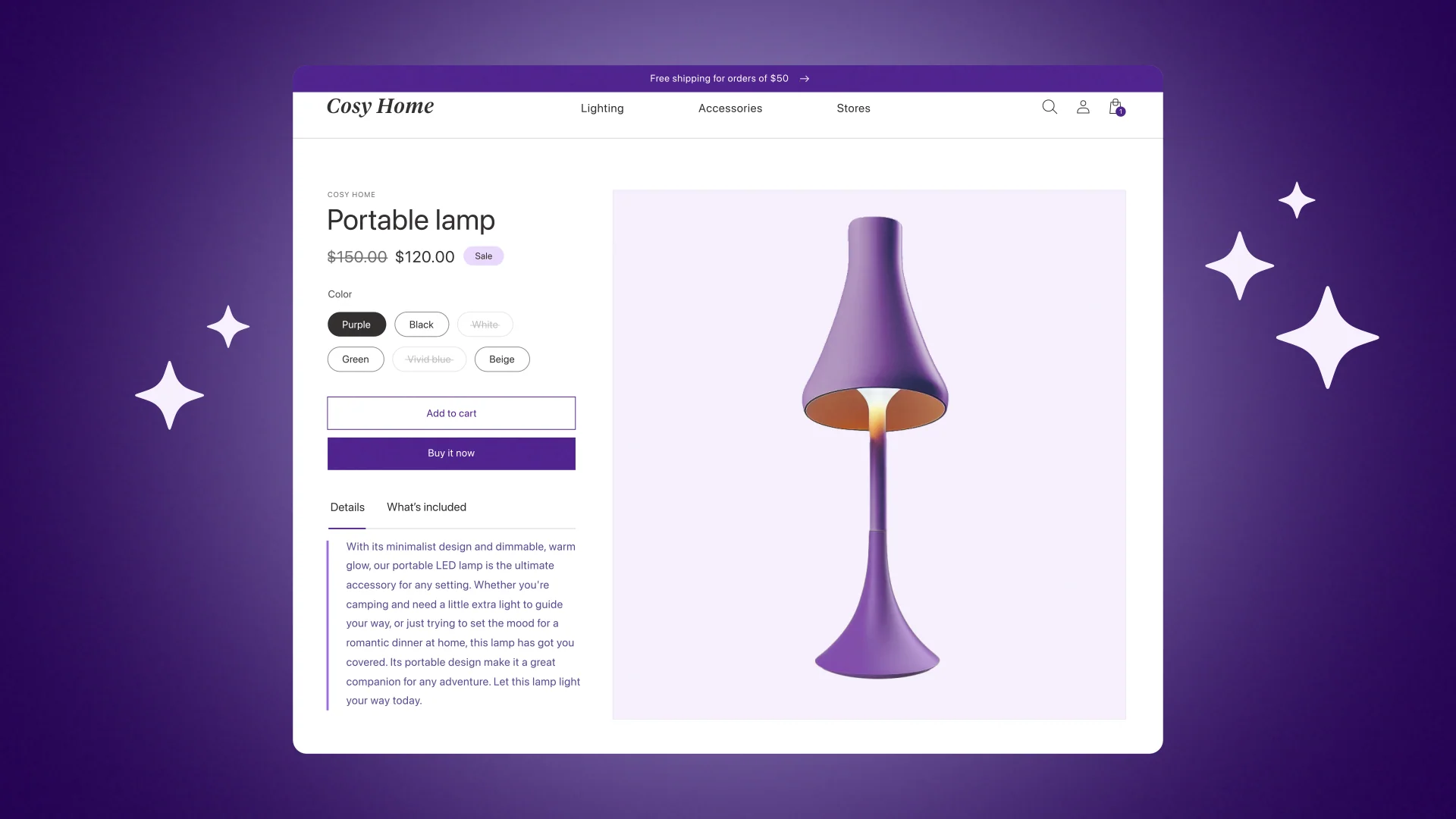
How AI Is Shaping Shopify: The New Features Built In Out of the Box
Shopify has woven artificial intelligence into nearly every corner of its platform. From AI-generated product descriptions to instant theme generation, here's a complete look at the AI features Shopify now includes out of the box — and how merchants can use them to sell smarter.

How Cheltenham Retailers Can Switch to Ecommerce: A Complete Guide
Discover how Cheltenham retailers can successfully transition to ecommerce with this comprehensive guide. Learn about platform selection, inventory management, shipping strategies, and local marketing tactics.

How to Use Klaviyo with Shopify: A Complete Guide to Email Marketing Success
Learn how to integrate Klaviyo with your Shopify store, set up key events, create automated flows, and maximise your email marketing ROI with advanced segmentation and personalisation strategies.